Come generare una trascrizione da un video di YouTube?

With the explosive growth of video content on YouTube, more people than ever rely on videos for learning, marketing, entertainment, and research. However, video content isn’t always convenient when you need searchable text, written notes, captions, or blog-ready material. That’s where transcripts become incredibly valuable.
Generating a transcript from a YouTube video allows you to:
- Repurpose video content into articles, social media posts, or email newsletters
- Improve accessibility for hearing-impaired audiences
- Enhance SEO by turning spoken words into searchable text
- Quickly review and summarize long videos
- Create subtitles for multilingual audiences
The good news is that you don’t need advanced technical skills to generate a transcript. Whether you prefer AI tools, browser extensions, built-in features, or manual methods, there are multiple ways to get the job done efficiently. In this guide, we’ll walk through the most effective methods step by step.
1. Generate YouTube Video Transcript Using Online AI Transcription Tools
One of the most accurate and efficient ways to generate a transcript from a YouTube video is by using AI-powered transcription services. These tools use advanced speech recognition technology to convert spoken words into clean, formatted text.
Popular AI transcription platforms include:
- Swyshare free online YouTube video summarizer
- Tactiq youtube transcript generator
- NoteGPT youtube transcript generator
How to use AI transcription tools to generate transcript from youtube video:
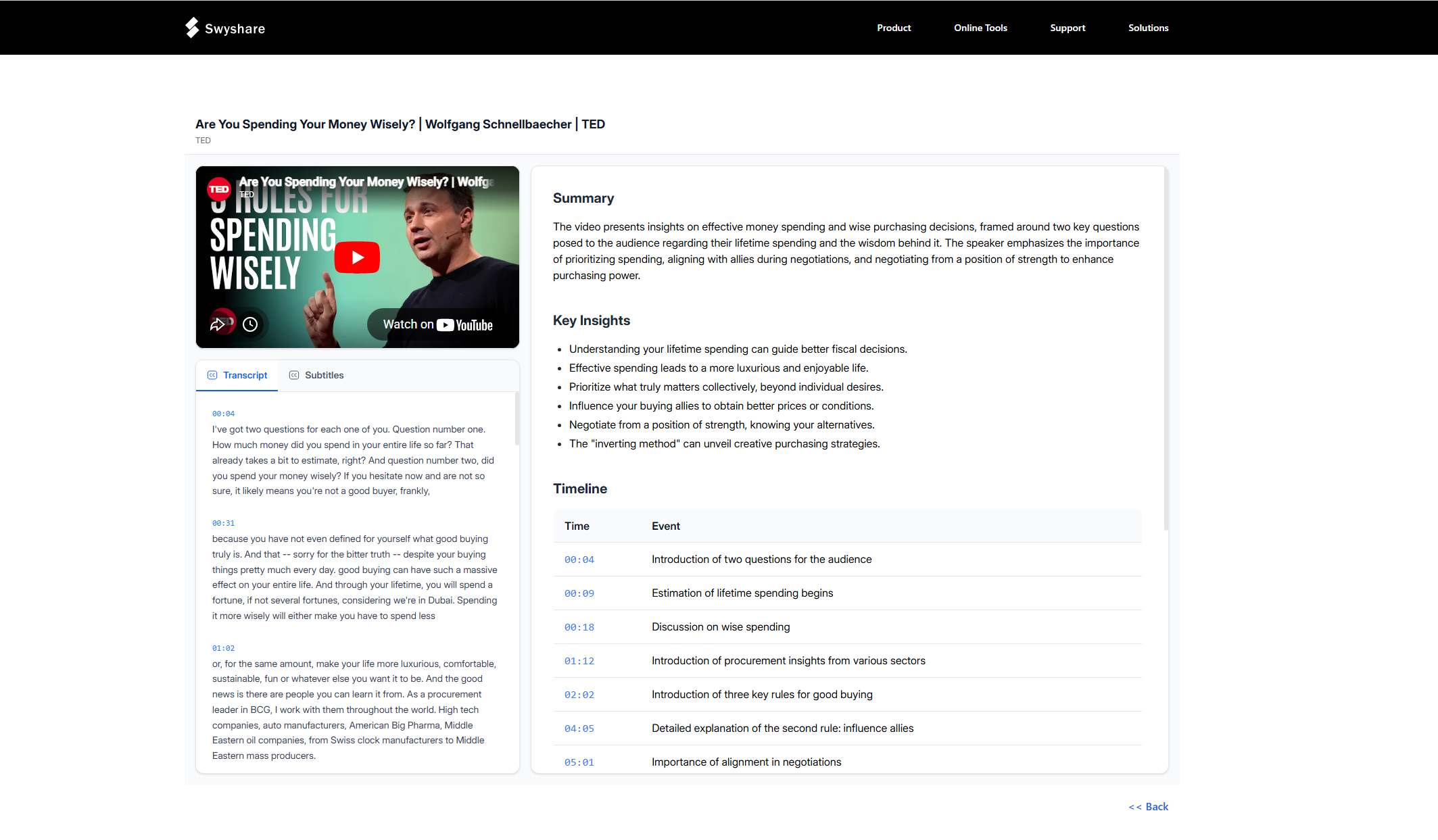
- Open your chosen transcription platform, such as https://www.swyshare.com/online/youtube-summary/
- Copy the YouTube video URL, paste the video link and click “Generate Summary”.
- Allow the AI to process the audio, then copy or download the transcript.
Professionisti:
- High accuracy (especially with clear audio)
- Automatic formatting and punctuation
- Speaker detection
- Easy export options
- Suitable for long videos and professional use
Contro:
- Free plans often have usage limits
- Some tools require paid subscriptions
- Accuracy may drop with heavy accents or background noise
AI transcription tools are ideal for professionals who need polished transcripts for publishing, editing, or repurposing content.
2. Generate YouTube Video Transcript Using Online Subtitle Downloaders
If a YouTube video already has captions available, online subtitle downloaders provide a quick and free way to extract the transcript.
Some popular subtitle downloader websites include:
- DownSub
- SaveSubs
How online subtitle downloaders work :
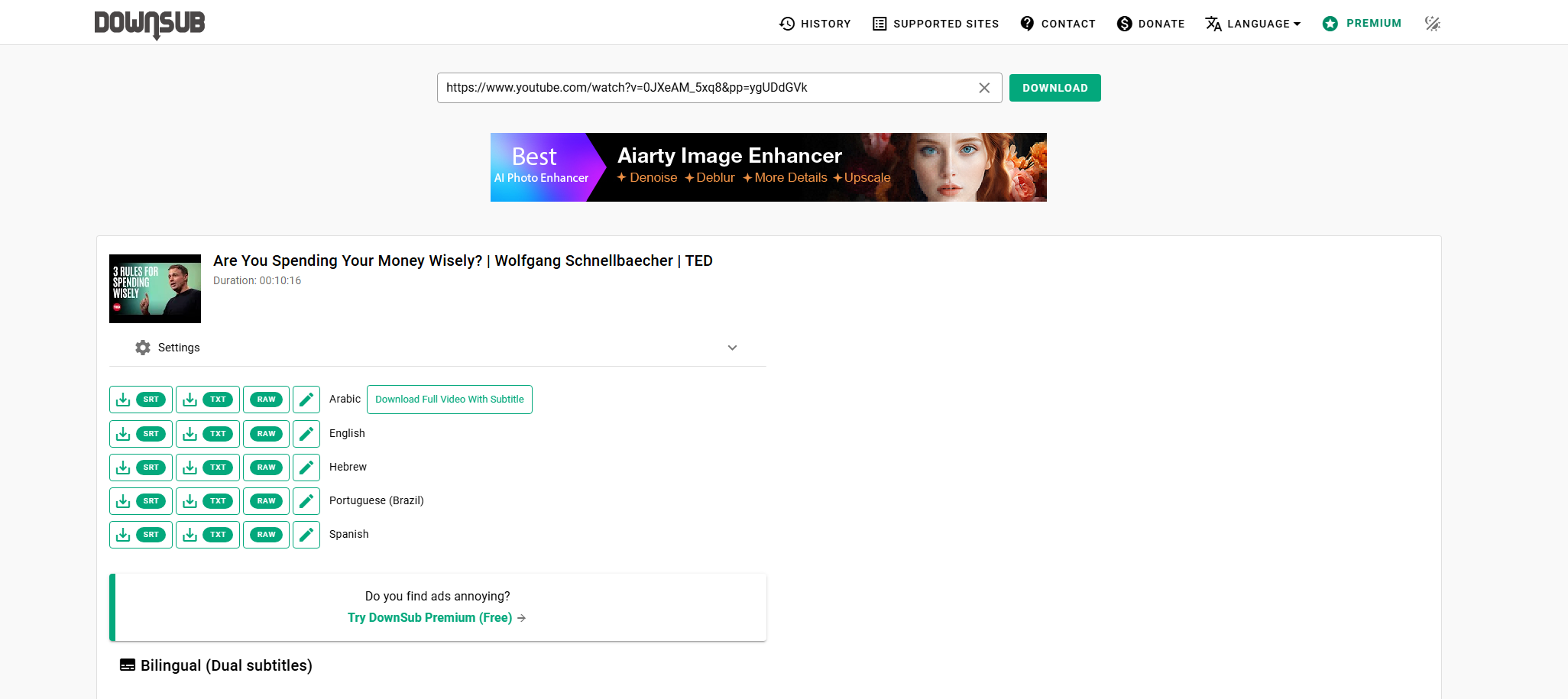
- Visit the subtitle downloader website, e.g. downsub.com.
- Copy the YouTube video URL and paste the URL into the provided field.
- Select the language (if multiple options are available).
- Download the subtitle file (usually in SRT or TXT format).
- Open the file in a text editor to remove timestamps if needed.
Professionisti:
- Fast and simple
- No account required
- Libero da usare
- Supports multiple languages (if available)
Contro:
- Only works if subtitles exist
- Auto-generated captions may contain errors
- Formatting cleanup may be required
Online subtitle downloaders are perfect when you need a quick transcript without advanced formatting features.
3. Generate YouTube Video Transcript Using YouTube’s Built-in Transcript Feature
Many users don’t realize that YouTube itself offers a built-in transcript tool. This feature allows you to view and copy the transcript directly from the video page.
Steps to Access the Transcript :
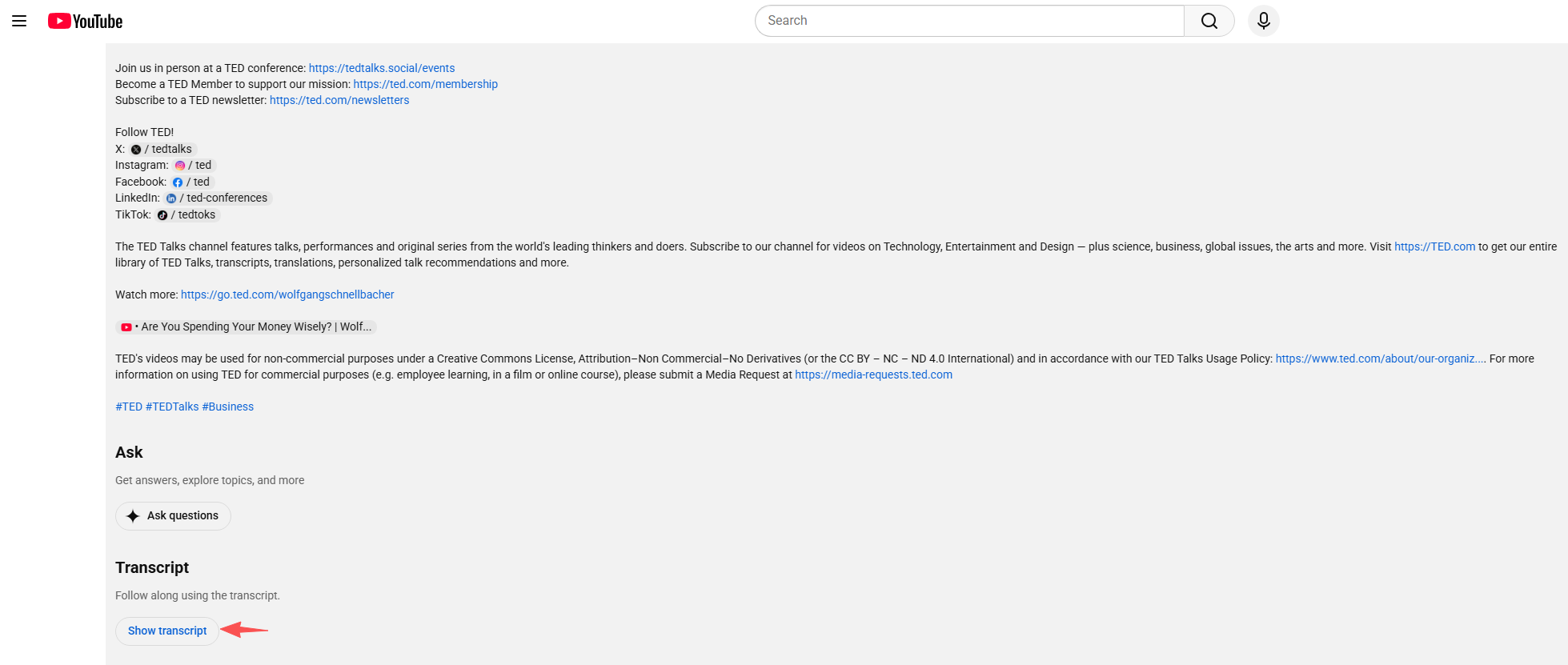
- Open the YouTube video, find and click “Show transcript” in the video description.
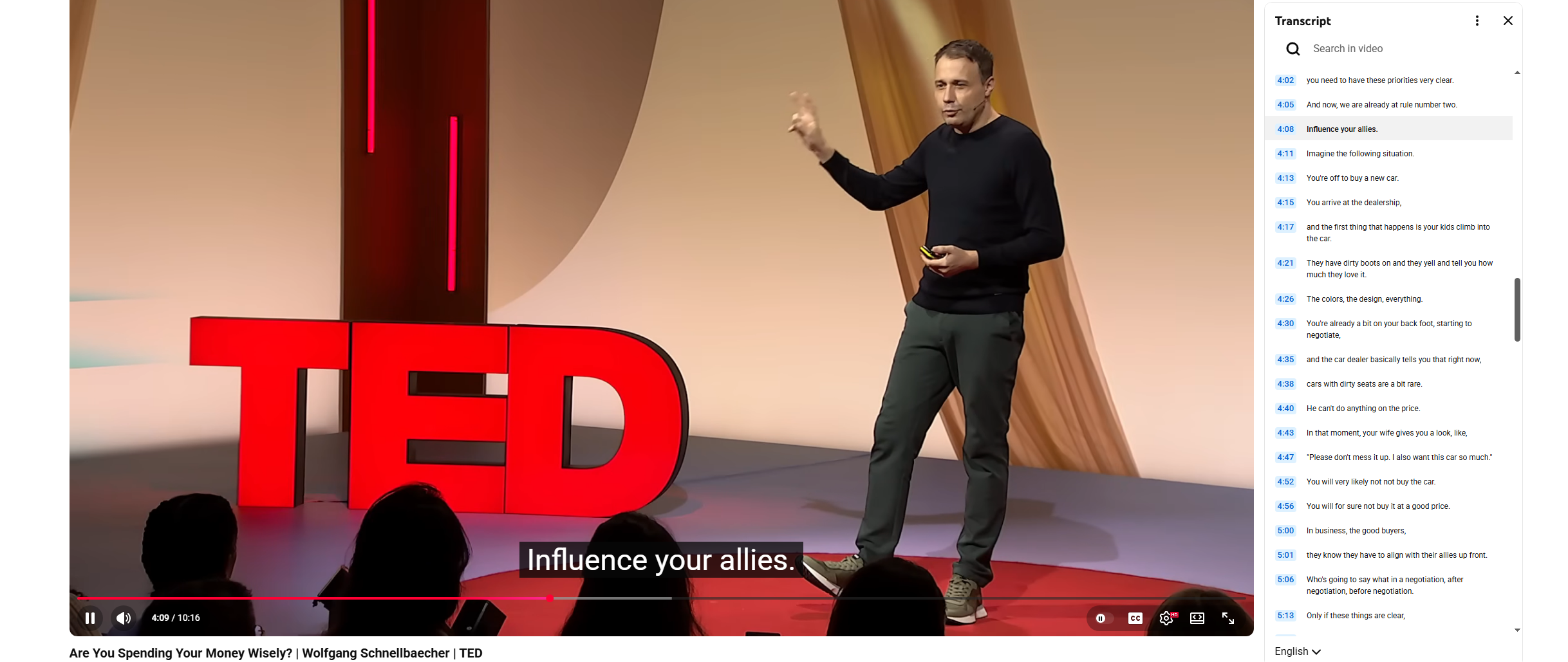
- The transcript panel will appear on the right side; Copy and paste the text into your document.
Professionisti:
- Completamente gratuito
- No third-party tools required
- Instant access
- Convenient for quick copying
Contro:
- Accuracy depends on auto-generated captions
- Limited formatting options
- Not available for every video
This method is ideal for quick note-taking, studying, or drafting simple blog content. However, you may need to manually edit punctuation and grammar.
4. Generate YouTube Video Transcript Using Google Docs Voice Typing
If captions are unavailable or you want a manual workaround, you can use voice typing in Google Docs to transcribe YouTube audio in real time.
How to Use Google Docs Voice Typing :
- Open Google Docs in your browser.
- Create a new document.
- Clic Tools → Voice typing .
- Click the microphone icon to activate it.
- Play the YouTube video near your microphone.
- Google Docs will automatically convert speech to text.
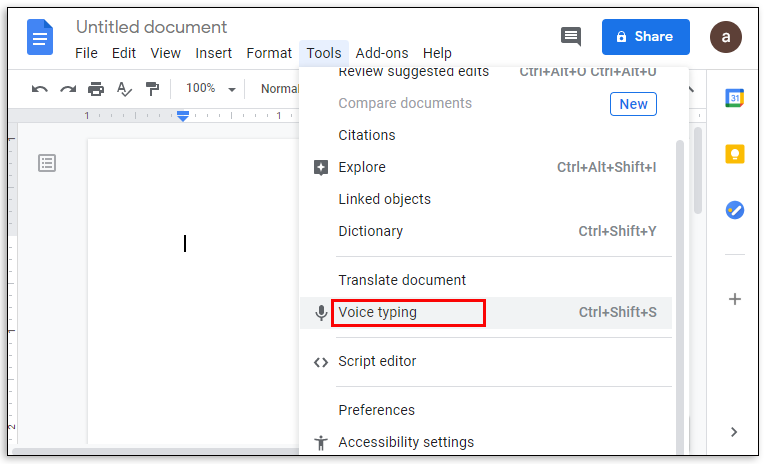
For best results, use a quiet environment and high-quality speakers or headphones to minimize background noise.
Professionisti:
- Free and easy to access
- No need to upload files
- Works even if no captions exist
- Real-time transcription
Contro:
- Requires clear audio
- May misinterpret words
- Needs manual editing afterward
Google Docs Voice Typing is best suited for shorter videos or situations where other methods aren’t available.
5. conclusione
Generating a transcript from a YouTube video is easier than ever thanks to modern tools and built-in features. Whether you prefer AI-powered transcription platforms, online subtitle downloaders, YouTube’s built-in transcript feature, or Google Docs Voice Typing, each method provides a practical solution.
If accuracy and professional formatting are your top priorities, online AI transcription tools like Swyshare free YouTube summarizer are the best option. If you need a quick and free solution, subtitle downloaders or YouTube’s built-in transcript feature will likely meet your needs. For situations where captions are unavailable, Google Docs Voice Typing offers a simple alternative.
Ultimately, the right method depends on your purpose, budget, and the quality of the video audio. By choosing the most suitable approach, you can quickly transform any YouTube video into readable, searchable, and reusable text content—making your workflow more efficient and your content more accessible.